Prokuria SSO Integration Guide
Document Control
- Version: 3.0
- Date: 30-Mar-2026
- Prepared by: Prokuria Team
- Confidentiality: This document contains proprietary information.
Table of Contents
- Executive Summary
- Scope
- Prerequisites
- Overview of the Integration
- Authentication Protocol & Flow
- Integration Steps
- Support and Contact
Executive Summary
This guide provides step-by-step instructions for integrating Prokuria with Microsoft Entra ID (Azure Active Directory) using Single Sign-On (SSO). It is intended for IT administrators and technical staff at client organizations to configure secure and role-based access to Prokuria.
Scope
This document covers the configuration of Azure AD for Prokuria SSO, including:
- App registrations
- Role definitions
- Claims configuration
- User provisioning options
Note: This guide does not cover general Azure AD administration, multi-factor authentication policies, or SCIM-based provisioning.
Prerequisites
- Microsoft Entra (Azure AD) administrator access
- Prokuria account with SSO enabled
- At least one test user account
Overview of the Integration
Prokuria requires two app registrations in Microsoft Entra:
- ProkuriaWeb → represents the web application
- ProkuriaAPI → represents the backend API
Provisioning Models:
-
A. Pre-Provisioning:
Users have pre-created accounts in Prokuria. On login, accounts are matched by User Principal Name (UPN) or email. -
B. Just-in-Time (JIT) Provisioning:
Users are created automatically on first login, with roles applied from Azure or based on rules.
Both methods are secure — the choice depends on whether you prefer automated onboarding or more controlled user management.
Authentication Protocol & Flow
Prokuria integrates with Microsoft Entra ID (formerly Azure AD) using OpenID Connect (OIDC) — a modern, secure protocol for Single Sign-On in web applications. OIDC supports:
- Token-based authentication
- Strong session management
- Seamless integration with Microsoft’s app registration model
How the Authentication Flow Works
- Users access the Prokuria web application.
- They are redirected to Microsoft Entra ID login via OIDC.
- After successful login, Entra returns an ID token (and optionally an access token).
- These tokens authenticate and authorise access to Prokuria’s backend API.
- Based on the provisioning model:
- Pre-Provisioned: Users are matched to existing Prokuria accounts by email or UPN.
- JIT: Accounts are created at first login, with roles from Entra app roles or group claims.
This ensures secure, role-based access using your organisation’s corporate credentials.
Integration Steps
A. Pre-Provisioning
Users must have pre-created accounts in Prokuria. On login, they are matched by UPN or email.
Register ProkuriaWeb Application
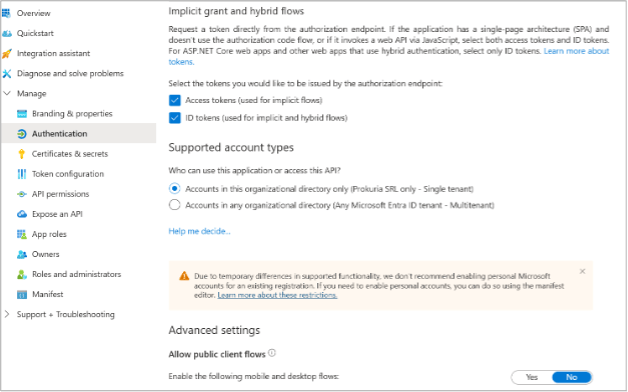
- Step 1: Authentication

⚠️ Important: All redirect URIs for ProkuriaWeb (including localhost for testing and the production URL) must be registered as Single-Page Application (SPA) — not as “Web” platform. Using the “Web” type will result in a cross-origin token redemption error (
AADSTS9002326).
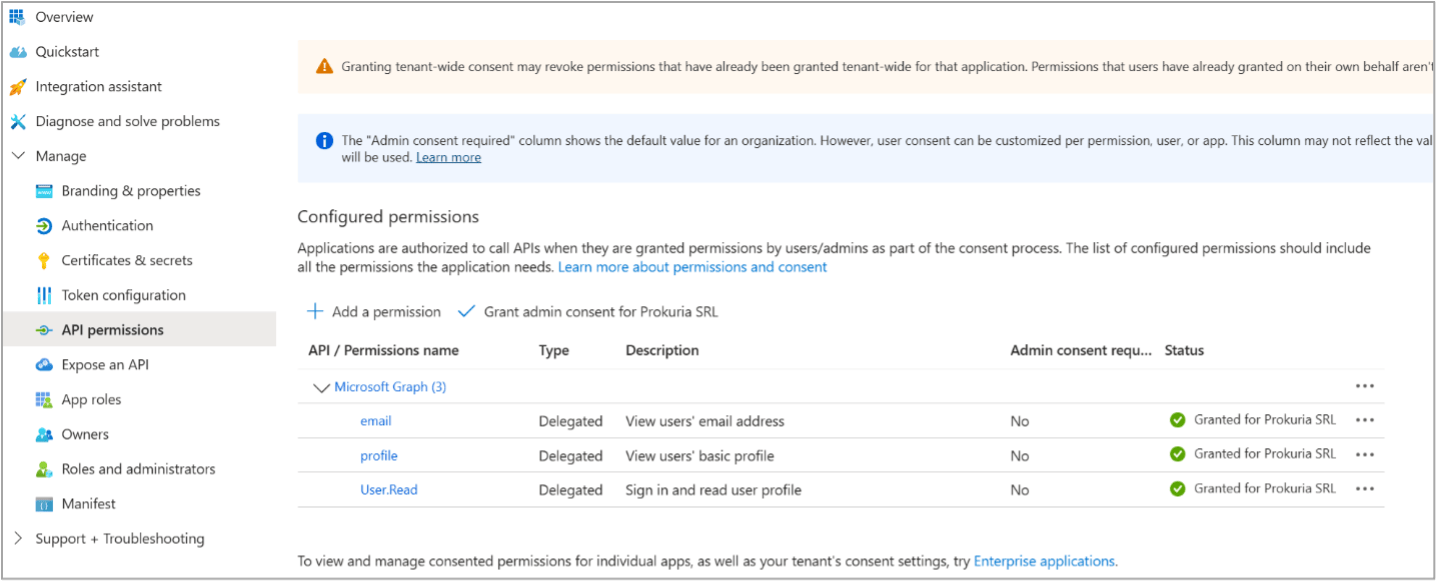
- Step 2: API Permissions
Register ProkuriaAPI Application
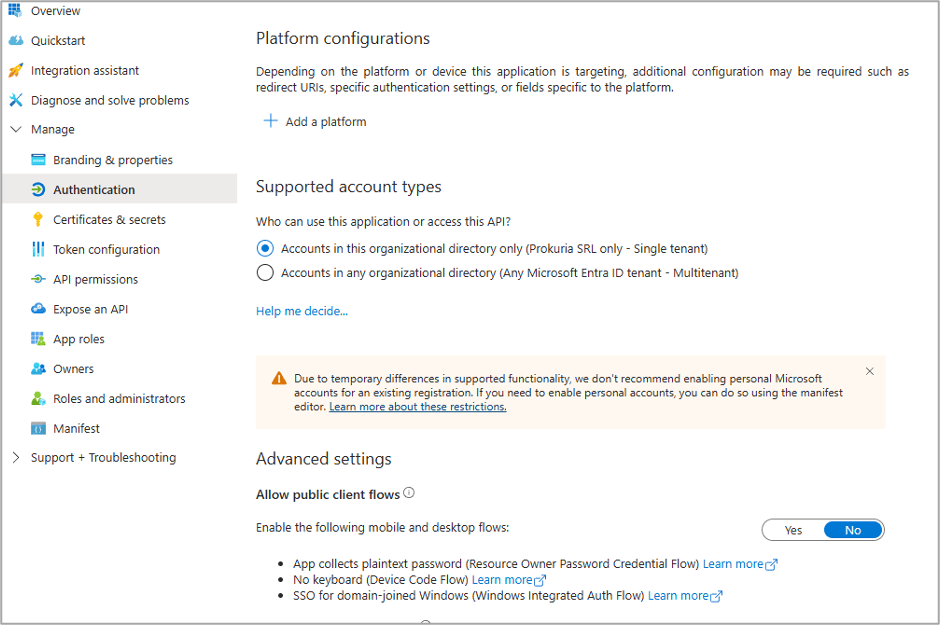
- Step 1: Authentication
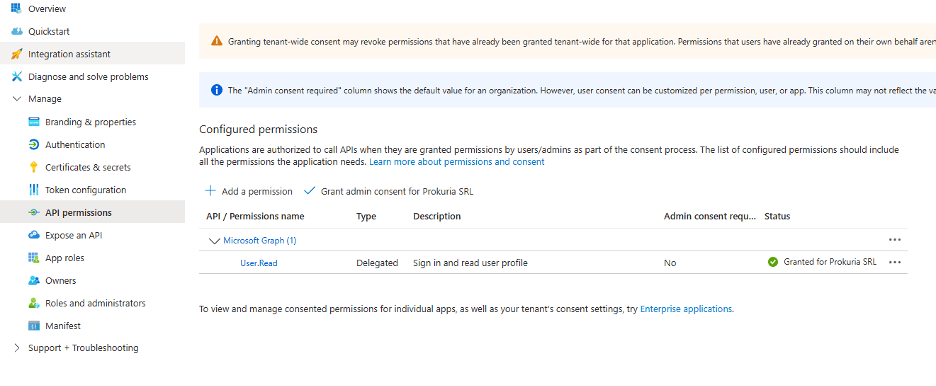
- Step 2: API Permissions
- Step 3: Expose API
The scope is automatically created using the app’s client ID. You only need to define theapi.scope.

B. Just-in-Time (JIT) Provisioning
Users are created automatically at first login. Roles are applied from Azure.
1. Define Roles
Go to:
ProkuriaAPI App Registration → App Roles
Create new roles based on guidance from the Prokuria team. (Exact roles are agreed during setup.)
Example Roles:
Admin– Full accessBuyer– Manage RFQs, POsVM– Manage suppliers and compliance
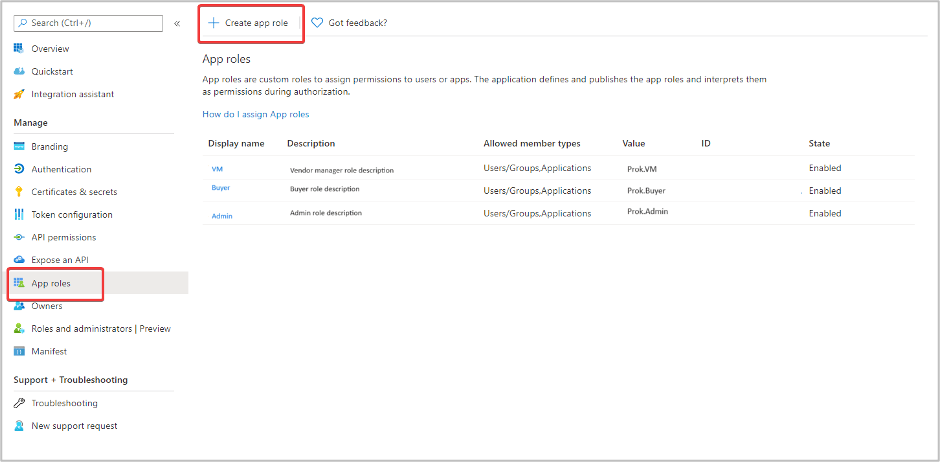
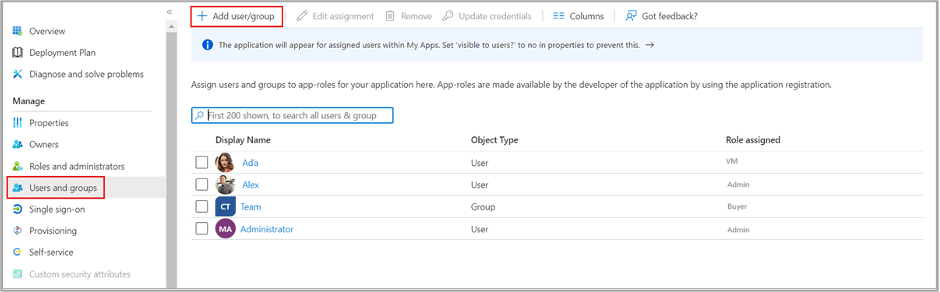
2. Assign Users or Groups
Navigate to:
Enterprise Applications → ProkuriaAPI → Users and Groups → Add Users/Groups
Prokuria Support Access
Once SSO is enabled for your environment, local Prokuria accounts are no longer available for login. To allow the Prokuria team to continue providing support, configuration, and future implementations, please add a Prokuria external/guest user (provided during onboarding) to your Azure AD tenant and assign it to the ProkuriaWeb and ProkuriaAPI applications.
Troubleshooting
| Error | Cause | Solution |
|---|---|---|
AADSTS9002326 — Cross-origin token redemption |
Redirect URIs are registered as “Web” instead of “Single-Page Application (SPA)”. | In your App Registration → Authentication settings, update the platform type to SPA for all redirect URIs (both localhost and production). |
Support and Contact
If you need help with the SSO configuration:
Email: support@prokuria.com